How to enroll in 2-step verification
Your safety is our priority – in person and online
That's why we've rolled out 2-step verification in My Account, so you can have peace of mind knowing we're taking an extra step to protect your information.
We created this helpful tutorial to help you enroll using SMS text message or email.
Take me to the frequently asked questions >
Step 1: Log in to My Account on your mobile phone, tablet or desktop computer.

Step 2: Select the "My account" menu and then press "Profile & settings".

Step 3: Once you're on the Profile & settings page, scroll down a little bit until you reach the "Login authentication methods" section. You will see the option to set up an authentication method using SMS (text message), passkey or an authenticator app.
Note that if you previously had email as a verification method, you will no longer be able to verify your account that way.
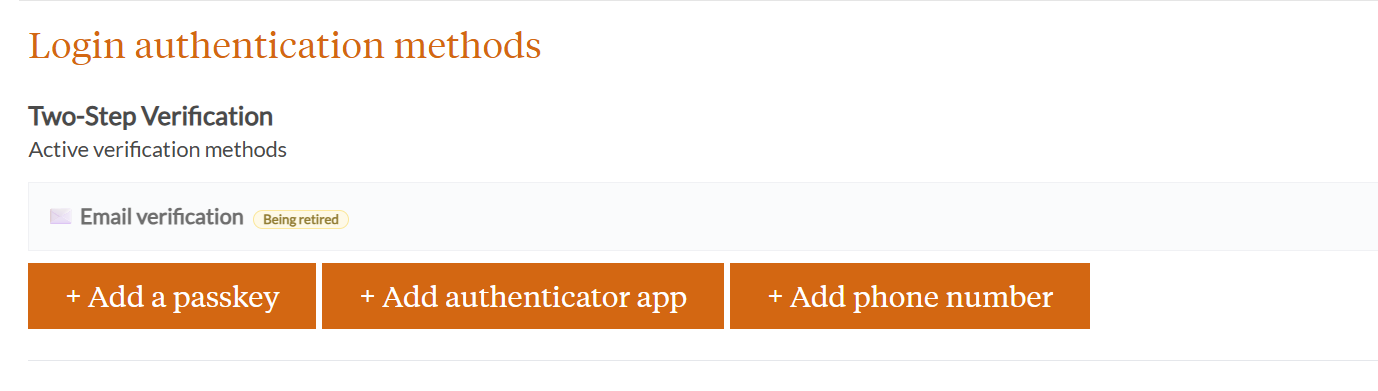
Step 4: Once you select your preferred method, follow the instructions on the screen to verify your account.

Step 5: Once you receive your code, enter it into the box that says "One-time code" and select the orange Submit button. Note that the button will not turn orange until you've entered the code.
If you didn't receive the code, select "Get another code >" and another will be sent to you.

Step 6: Success! If you entered the correct code, your 2-step verification enrollment will be saved and complete, and you'll be able to manage your account normally by selecting "Go to My Account" or clicking the X in the top right corner.

Setting up a second authentication method
Setting up a second authentication method is simple. Once you sign up for your primary method, simply select another method you'd like to use. Note that once you've enrolled in one method, you'll have to choose one of the other options.
You will now also have recovery codes available in case you lose access to your My Account verification methods. Be sure to save these in a safe place.

2-step verification is a method of confirming your identity when accessing an online account. 2-step verification provides an extra layer of security beyond your password by generating a unique code that can be sent to you via text, email or an authentication app. It will be much more difficult for someone to access an account if they have to gain access to a unique code that was sent to your phone or email.
Safety, whether it's in person, on the phone or online, is our top priority for Spire employees, customers and communities. And 2-step verification? is considered one of the best ways to keep your online accounts and personal information safe. With 2-step verification, you can have peace of mind knowing your stored payment methods, natural gas account information like usage and billing history, and personal information like address and phone number are even more secure.
Right now, enrolling in MFA is optional. Eventually, all registered My Account users will be required to enroll in this extra security step. We'll be sure to give you a heads up before that happens.
This is an extra security step to prevent a potential bad actor from intercepting your information for My Account based on information you may have auto-populated in other online accounts.
If you lose access to both your primary and secondary contact methods, please give us a call and we'll help you get back into your account. You also have access to recovery codes that you can use to regain access to your account.
If you've already waited for a few minutes and haven't received a code, please check the following:
- Network issues: Make sure your phone has a signal and is not on airplane mode. If you're on Wi-Fi, try turning your Wi-Fi off; if you're using mobile data, try turning your Wi-Fi on.
- Contact preference mismatch: Please be sure you're checking the correct authentication method and that the information you entered is correct.
If that still doesn't work, please contact us.
Yes, you will be asked to re-verify with a new code each time you sign in, including when you sign back in after My Account automatically logs you out after inactivity.